In today’s fast-paced digital environment, efficiently managing battery life on devices such as the iPhone is vital. Many users are unaware that they can automate their devices to switch to Low Power Mode at predetermined battery levels using the Shortcuts app. This functionality not only prolongs battery life but also enhances overall device performance under critical battery conditions. However, setting up such automations involves a series of steps that need to be accurately followed to guarantee peak functionality. Let’s explore how this can be implemented effectively, and consider the potential impacts on daily device usage and battery health management.
Understanding Low Power Mode
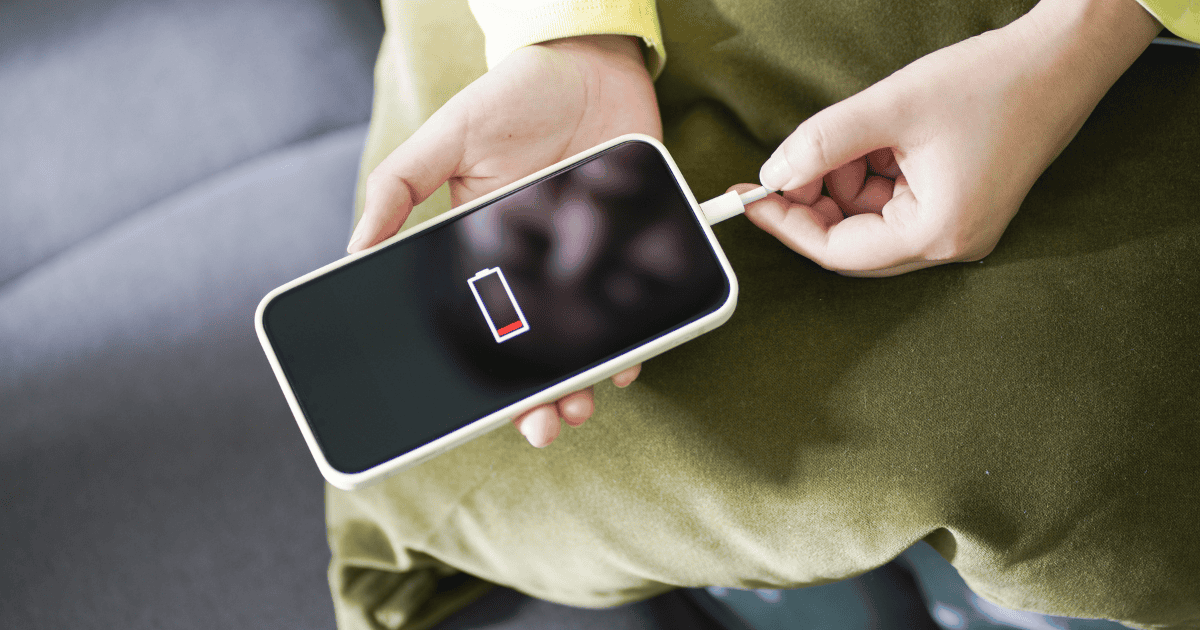
Low Power Mode on the iPhone is designed to significantly reduce battery consumption by limiting non-essential functions and system animations. When enabled, this feature adjusts various settings to conserve battery life, including reducing screen brightness and shortening the Auto-Lock period. It also suspends some visual effects and background activities such as iCloud Photos syncing and automatic downloads, which are known to drain battery power more quickly.
Users have the option to manually enable Low Power Mode via the device’s settings, or set it to automatically enter Low Power Mode at a specific battery percentage. This automatic activation is particularly useful as it guarantees the iPhone conserves energy as soon as it reaches a predefined battery level, without requiring user intervention.
Typically, users might choose to have Low Power Mode activate when the battery life drops to 20% or 10%, helping to extend the usability of the device until it can be recharged.
This functionality is essential for maintaining device performance and longevity, especially during times when charging opportunities are limited. By managing power consumption in such an efficient way, Low Power Mode supports users in maximizing their iPhone’s battery life.
Accessing the Shortcuts App
The Shortcuts app, a versatile tool on the iPhone, is accessible through the App Library or by searching in the App Store. This application empowers users to streamline their daily tasks by creating personal automations, one of which includes the ability to activate Low Power Mode. This is particularly useful when aiming to safeguard the battery life of the device.
The app’s interface allows for intuitive navigation and customization, catering to a variety of user needs and preferences.
To commence utilizing the Shortcuts app for battery management, one must first locate and install it from the App Store if it’s not already available on the device. Once installed, users can explore a range of automation options that can enhance the functionality of their iPhone, focusing on optimizing battery usage.
The ability to automate Low Power Mode activation is a significant advantage, as it aids in extending the battery’s longevity and maintaining device efficiency during critical times. This automation confirms that the iPhone conserves energy automatically, reducing the frequency of manual adjustments and providing a seamless user experience.
Setting Up Battery Automation
To establish battery automation in the Shortcuts app, first select a specific battery percentage at which Low Power Mode will be automatically enabled. This practical functionality allows you to guarantee your iPhone or iPad efficiently manages battery life, especially when it begins to dwindle.
By automating Low Power Mode, you can greatly extend your device’s usability throughout the day without manual intervention.
Here are key steps to follow in setting up this automation:
- Open the Shortcuts App: Start by launching the Shortcuts app on your iPhone or iPad.
- Create a New Automation: Tap on the ‘Automation’ tab, then select ‘+ Create Personal Automation.’
- Set Battery Level Trigger: Choose the ‘Battery Level’ option and specify the condition to ‘Battery Level Equals’ the desired percentage.
- Choose Action to Set Low Power Mode: After setting the trigger, search for and select ‘Set Low Power Mode,’ then toggle it to ‘On.’
This automation sequence is an essential tool in managing your device’s power consumption. Once configured, it allows Low Power Mode to activate automatically, ensuring your device maintains top performance even at lower battery levels.
Selecting Battery Percentage
Selecting an appropriate battery percentage to activate Low Power Mode is essential for optimizing your iPhone’s energy usage. By customizing the battery level threshold, users can effectively manage how their device conserves power throughout the day. This choice depends largely on personal usage patterns and daily power needs.
Typically, iPhone users might set Low Power Mode to activate at 20% or 10%, but these are not the only options. Choosing a higher percentage like 30% could be beneficial for those who use their phones extensively and may deplete battery rapidly. Conversely, setting the trigger at a lower percentage, such as 15%, might suffice for users with lighter phone usage, ensuring they still conserve battery without compromising device functionality prematurely.
Automating Low Power Mode based on a specific battery percentage not only helps in prolonging battery life but also aids in efficient power management. This automation ensures that your device switches to an energy-saving mode precisely when needed, without manual intervention.
Configuring Automation Actions
Configuring automation actions in the Shortcuts app allows users to set Low Power Mode to activate automatically when the iPhone’s battery reaches a predetermined level. This setup empowers users to optimize their device’s battery usage without manually adjusting settings, guaranteeing efficient power management especially when the battery is low.
The process involves selecting the appropriate automation trigger and action within the Shortcuts app.
Here are key steps to configure the automation:
- Search for the Automation Tab: In the Shortcuts app, navigate to the Automation tab to begin creating a new automation.
- Set Battery Level Trigger: Choose the ‘Battery Level’ option and adjust the slider to define the specific battery percentage at which Low Power Mode should engage, such as 20% or 10%.
- Add Low Power Mode Action: After setting the trigger, search for the ‘Set Low Power Mode’ action and add it to your automation sequence.
- Customize Action Settings: Guarantee the action is set to ‘Turn On’ Low Power Mode once the battery level condition is met.
Finalizing Automation Setup
Once you have configured the trigger and action for your automation, proceed to review and confirm the settings to finalize the setup. It is essential to make sure that the automation settings are accurately aligned to activate the low power mode when the battery percentage drops to the designated level. This step is vital for achieving extended battery life and maintaining device efficiency.
By clicking ‘Next’ and then ‘Done’, you save and implement the changes, enabling your iPhone to automatically shift into low power mode as needed. This process not only helps in conserving battery life but also reduces the need to manually monitor battery levels frequently. Here’s a quick overview:
| Step | Description |
|---|---|
| Review Settings | Double-check automation triggers and actions |
| Confirm and Save | Click ‘Next’ and ‘Done’ to save settings |
| Automation Active | Low power mode engages at set battery percentage |
| Monitor & Adjust | Periodically review to ensure peak performance |
MacReview Verdict
To sum up, automating the activation of Low Power Mode at specified battery percentages leverages the power of the Shortcuts app to greatly enhance battery management on iPhones.
This proactive approach guarantees that the device remains operational longer, even when running on fumes.
By setting this automation, users can have confidence that their phone’s power management is not only efficient but also a set-it-and-forget-it solution, providing peace of mind and extended device usability.