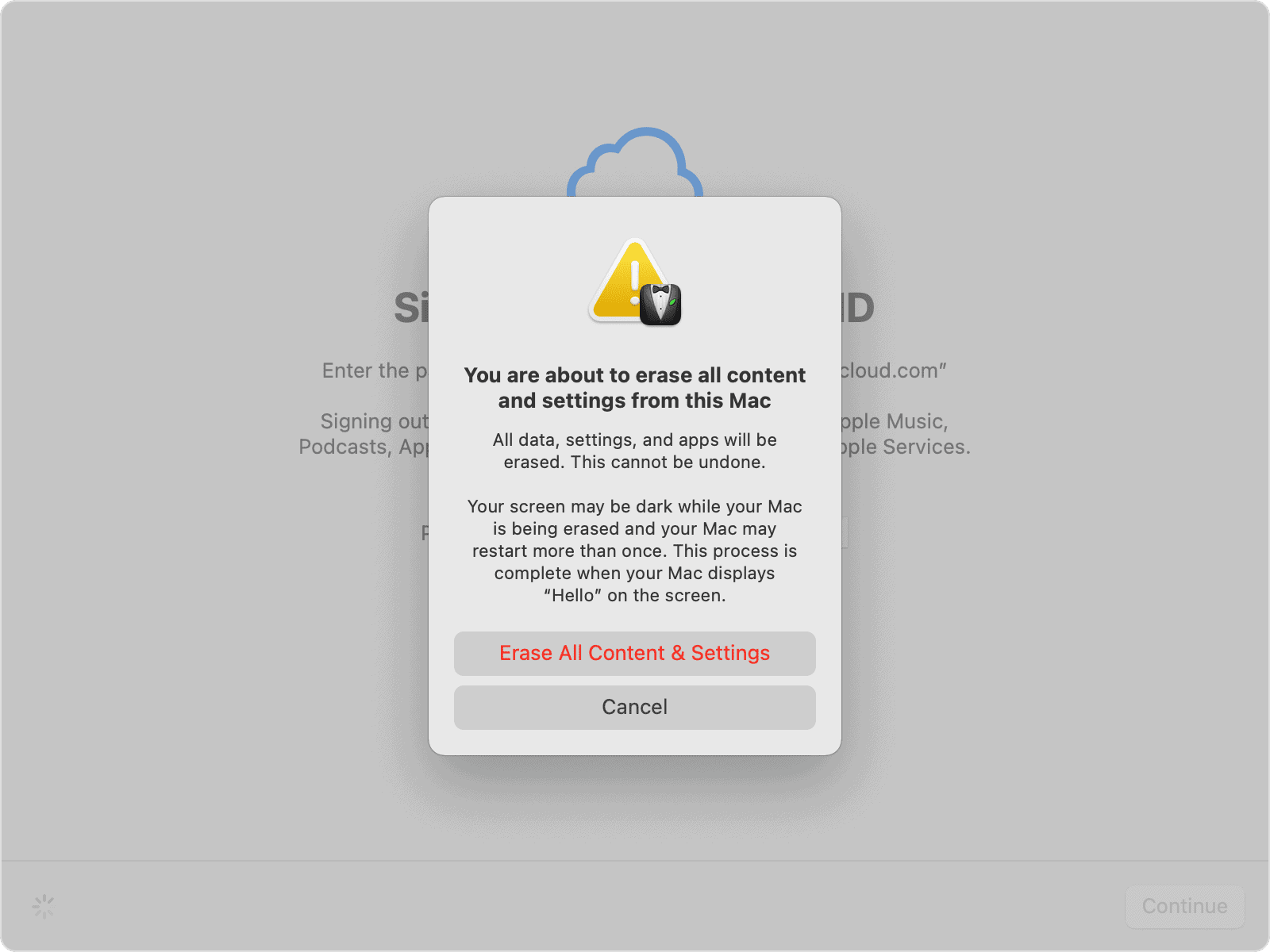
To factory reset a Mac, go to Apple menu, System Settings, General, Transfer or Reset, then Erase All Content and Settings. That is the whole procedure on any Mac with Apple silicon or the Apple T2 Security Chip running macOS Monterey 12 or later, which covers every Mac that can run macOS Tahoe 26. Older Intel Macs without a T2 chip need the longer Recovery method further down.
Key Takeaways
- Erase All Content and Settings needs Apple silicon or a T2 chip plus macOS Monterey 12 or later. On macOS Ventura 13 and later it lives in System Settings, General, Transfer or Reset.
- On macOS Monterey the path is different: open System Preferences, then choose Erase All Content and Settings from the System Preferences menu in the menu bar.
- Sign out of your Apple Account when the erase prompts you, or Activation Lock stays attached and the next owner hits a lock screen they cannot get past.
- The fast erase does not reinstall macOS. It leaves the version already on the disk and drops the Mac back at the setup assistant.
- Intel Macs without a T2 chip need macOS Recovery: hold Command-R at startup, erase Macintosh HD in Disk Utility, then choose Reinstall macOS.
Do These Five Things Before You Erase Anything
Erasing a Mac is not the risky part. Erasing a Mac you have not properly signed out of is, and Activation Lock is the reason. On any Apple silicon or T2 Mac running macOS Catalina 10.15 or later with two-factor authentication on, Find My arms Activation Lock automatically, and it stays armed until you release it. A buyer who gets a locked Mac cannot set it up, cannot bypass it, and will be back in your inbox that evening.
Back up with Time Machine
Connect an external drive, open System Settings, General, Time Machine, add the disk and let the backup finish first. Apple’s own guidance is that a backup made before you erase can restore your files onto a new Mac. Do not rely on iCloud alone. iCloud syncs, and a synced file you delete is a file that vanishes everywhere.
Sign out of your Apple Account
The Erase Assistant asks for your Apple Account password and signs you out for you. Doing it beforehand is still worth the two minutes, because it forces you to discover now, while you still have a working Mac, that you cannot remember the password. If that happens, reset it at iforgot.apple.com first.
Turn off Find My
Find My Mac is what holds Activation Lock in place. Turn it off at Apple menu, System Settings, your name, iCloud, Find My Mac, and have your Apple Account password ready. If the Mac is already gone or already erased, you can remove it from iCloud.com/find instead. If neither route is open to you, Apple’s last resort is an Activation Lock support request backed by proof of purchase, which is exactly as slow as it sounds.
Unpair your Apple Watch
If you use your watch to unlock this Mac, switch that off at Apple menu, System Settings, Touch ID and Password, in the Apple Watch section. Auto Unlock is tied to both devices being on the same Apple Account with two-factor authentication, so it breaks the moment you sign out anyway. Turning it off first means you find out about the dependency on your terms rather than at a login screen that has stopped accepting your wrist.
Unpair Bluetooth accessories
This one matters only if the Mac is going to someone in the same building. A Magic Keyboard that stays paired to a Mac now sitting on a colleague’s desk keeps talking to it, which produces the baffling experience of typing into a computer across the room. Unpair accessories in System Settings, Bluetooth before the handover. If the Mac is being shipped, skip this.
How Do You Factory Reset a Mac With Erase All Content and Settings?
Six steps on macOS Ventura 13 and later, including macOS Tahoe 26.
- From the Apple menu, choose System Settings.
- Click General in the sidebar, scroll down on the right, then click Transfer or Reset.
- Click Erase All Content and Settings.
- Enter your administrator password, meaning the password you use to log in to the Mac.
- Read the summary, then enter your Apple Account password when prompted to sign out. Ignore any alert asking you to sign back in to iCloud.
- Click Erase All Content & Settings to confirm. The Mac restarts, erases, and comes back at the setup assistant.
On macOS Monterey 12 the feature exists but hides somewhere else. Open System Preferences, then choose Erase All Content and Settings from the System Preferences menu in the menu bar.
One detail matters if you are selling. When the Mac reaches the setup assistant, stop. Do not run through setup and do not reconnect your Bluetooth devices. Power the Mac off at that screen and let the new owner start from there. Walking through setup yourself just means the buyer has to erase it again.
Which Macs Can Use the Fast Method?
Every Mac with Apple silicon, and every Intel Mac carrying the Apple T2 Security Chip. In practice the T2 group is the 2018 to 2020 Intel models: MacBook Pro and MacBook Air from 2018 through 2020, iMac Pro, iMac (Retina 5K, 27-inch, 2020), Mac mini (2018), and Mac Pro (2019 and later).
To check a specific machine, hold Option while choosing Apple menu, System Information, then select Controller or iBridge in the sidebar depending on the macOS version. If Apple T2 chip appears on the right, you are covered.
There is a shortcut that saves most people the trouble. If the Mac runs macOS Tahoe 26, it can use Erase All Content and Settings. The only Intel machines Tahoe supports are the MacBook Pro (16-inch, 2019), the MacBook Pro (13-inch, 2020) with four Thunderbolt 3 ports, the iMac (Retina 5K, 27-inch, 2020) and the Mac Pro (2019), and all four carry a T2 chip.
How to Erase an Intel Mac Without a T2 Chip
Anything from 2017 or earlier takes the long road, and the long road erases the disk without doing the account housekeeping for you. That is the important difference. Disk Utility signs you out of nothing, so work the checklist above first and add two items: sign out of iMessage in Messages, and on macOS Mojave 10.14 or earlier, deauthorize the computer in iTunes.
- Shut the Mac down. Press and release the power button, then immediately hold Command and R until the Apple logo or a spinning globe appears.
- Choose Disk Utility in the utilities window, then click Continue.
- Select Macintosh HD in the sidebar.
- Click Erase. Keep the name Macintosh HD and accept the format Disk Utility recommends, either APFS or Mac OS Extended (Journaled).
- Click Erase Volume Group. If that button is not shown, click Erase instead.
- Erase any other internal volumes you added yourself, the same way. Leave the ones you did not create alone.
- Quit Disk Utility, choose Reinstall macOS in the utilities window, click Continue and follow the prompts.
Two variations on the startup keys are worth knowing. Option-Command-R and Shift-Option-Command-R both start Internet Recovery over the network rather than from the local recovery partition, and each affects which version of macOS is offered when you reinstall. Use plain Command-R first. Reach for the others only if the recovery partition is damaged.
Apple also suggests resetting NVRAM on an Intel Mac before it changes hands, which returns some security settings to their factory state. One restart with Option, Command, P and R held down.
Frequently Asked Questions
Does Erase All Content and Settings reinstall macOS?
No. It removes your data, apps, settings and accounts, then hands the Mac back to the setup assistant with the same macOS version still installed. If you specifically need a different version of macOS on the disk, that is a Recovery job, not an Erase Assistant job.
Will erasing remove Activation Lock by itself?
Only if you complete the Apple Account sign-out during the process, or turned off Find My beforehand. Apple is explicit that a Mac erased remotely can stay Activation Locked, which is the point of the feature when a machine is stolen and the problem with it when a machine is sold.
Should I erase my Mac to fix it being slow?
Almost never. A factory reset is for changing owners, or for a system so broken it will not boot properly. Slowness on a Mac you are keeping is usually storage pressure, a forgotten login item, or an aging battery throttling performance, and erasing costs you a day to rule out what Activity Monitor would have shown in ten minutes.
MacReview Verdict
Use Erase All Content and Settings. If your Mac was made in 2018 or later, that is the correct answer and the Recovery method is a museum piece you do not need. It is faster, it handles the Apple Account sign-out that people forget, and it leaves the Mac in exactly the state a buyer expects.
Skip the Recovery section unless you are dealing with a genuinely old Intel machine or a Mac that will not start up normally. Those are the only two cases where Disk Utility earns its keep.
The step nobody should skip is the backup. Every other mistake here is recoverable in some form. Apple can eventually release an Activation Lock, a buyer can re-erase a half-configured Mac, a Bluetooth keyboard can be unpaired after the fact. Erased data with no Time Machine drive behind it is just gone.