Easy Steps to Set Up Your AirTag

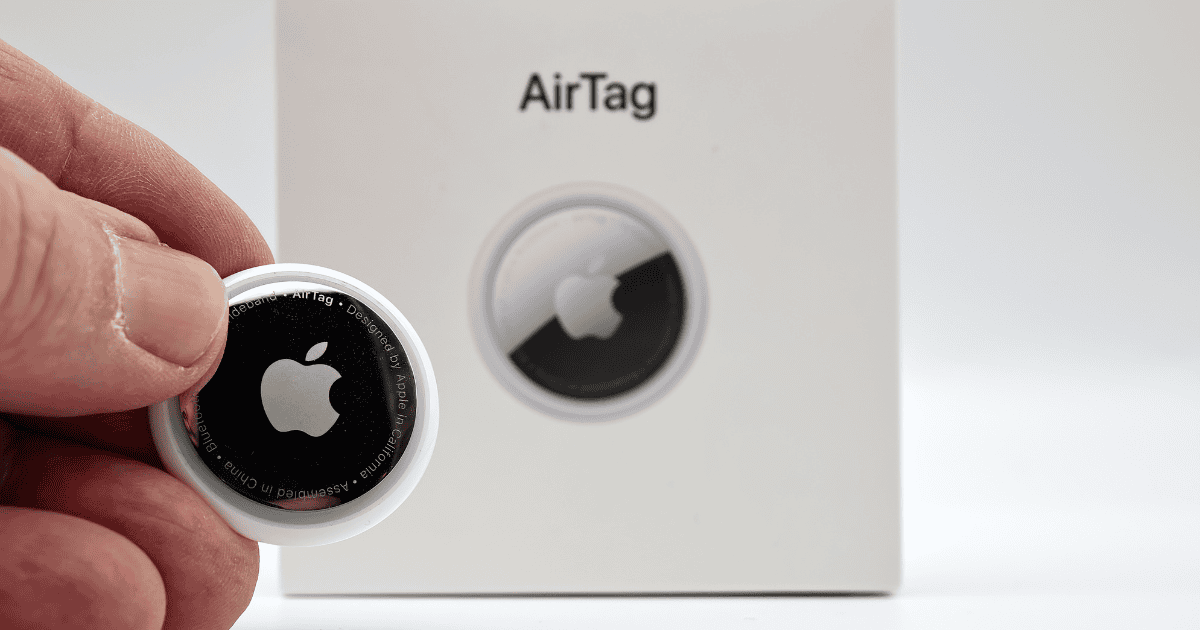
Setting up an AirTag involves a few straightforward steps designed to integrate seamlessly with your Apple ecosystem. After unboxing your AirTag, the initial step is to activate it by pulling out the battery tab, which powers the device. Next, simply place the AirTag near your iPhone; this proximity allows your phone to detect the AirTag and prompts you to begin the pairing process. The on-screen instructions will guide you through naming your AirTag and assigning it to an item. However, beyond these basic setup steps lie further nuances in customization and optimization of your AirTag’s functionality that are essential for maximizing its utility and security.

Steps to Set Up and Use Your AirTag

1. Unpack Your AirTag

Begin by carefully removing your AirTag from its packaging and ensuring that the battery tab is pulled to activate the device. The unpacking process is vital as it marks the first step towards utilizing your AirTag’s capabilities.

  • Unbox the AirTag.
  • Pull the battery tab to activate the device.

2. Bring AirTag Near iPhone

Once you have activated your AirTag by removing the battery tab, bring it close to your iPhone to start the connection process. This proximity is important as it allows your iPhone to detect the AirTag, initiating a seamless interaction between the devices.

  • Place the AirTag near your iPhone.
  • Ensure Bluetooth is enabled on your iPhone.

3. Follow Setup Animation

Upon removing the AirTag from its packaging and bringing it near your iPhone, a setup animation will promptly display on your screen. This intuitive animation is designed to guide you seamlessly through the initial configuration process.

  • Watch the setup animation on your iPhone.
  • Follow the on-screen instructions to complete the setup.

4. Name Your AirTag

Personalizing your AirTag with a unique name or emoji facilitates easy identification and tracking of your items in the Find My app. When setting up your AirTag, one of the key steps involves assigning a custom name to it.

  • Enter a custom name or choose from pre-set names.
  • Optionally, add an emoji for easy identification.

5. Confirm AirTag Settings

After naming your AirTag, make sure that your device meets all the necessary requirements for a smooth and efficient setup. Confirm that your iPhone or Apple device is updated to iOS 14.5 or later, as this is essential for AirTag compatibility.

  • Ensure iOS 14.5 or later is installed.
  • Verify Bluetooth, Location Services, and iCloud Keychain are enabled.
  • Confirm a strong Wi-Fi or cellular connection.

6. Attach AirTag to Items

Now that your AirTag is properly set up and registered, the next step is to attach it securely to the items you wish to track. Select an attachment method that guarantees your AirTag remains firmly in place.

  • Use a keyring, secure loop, or adhesive backing.
  • Attach the AirTag to your desired item (e.g., keys, bag, pet collar).

7. Test AirTag Functionality

Once your AirTag is securely attached, use the Find My app to test its functionality by attempting to locate the tagged item. This initial test guarantees that the AirTag near your iPhone is working correctly.

  • Open the Find My app.
  • Select the ‘Items’ tab and choose your AirTag.
  • Move the tagged item to check if the location updates accurately.

8. Explore Additional Features

Exploring the additional features of your AirTag, such as Precision Finding, enhances the functionality and user experience of item tracking. This feature, accessible through the Find My app, utilizes augmented reality to provide a more intuitive way to locate your items.

  • Use Precision Finding for accurate item location.
  • Activate Lost Mode if the item is lost.
  • Share AirTag location with family and friends through the Find My app.

MacReview verdict

In the grand tapestry of technological advancements, the setup of an AirTag emerges as a Herculean feat simplified to child’s play. One might marvel at the complex symphony orchestrated by simply bringing a device near an iPhone, a modern-day wand-waving. Yet, as these minute trackers are affixed to sundry items, society inches closer to never losing the remote again—truly, a pivotal moment in human evolution. This, indeed, is the zenith of modern convenience and, perhaps, the nadir of the search for lost possessions.


This is a recurring post, regularly updated with new information and offers.

The MacReview YouTube Channel

The MacReview YouTube Channel

Visit Our
Youtube Channel

Watch Anywhere, Anytime!

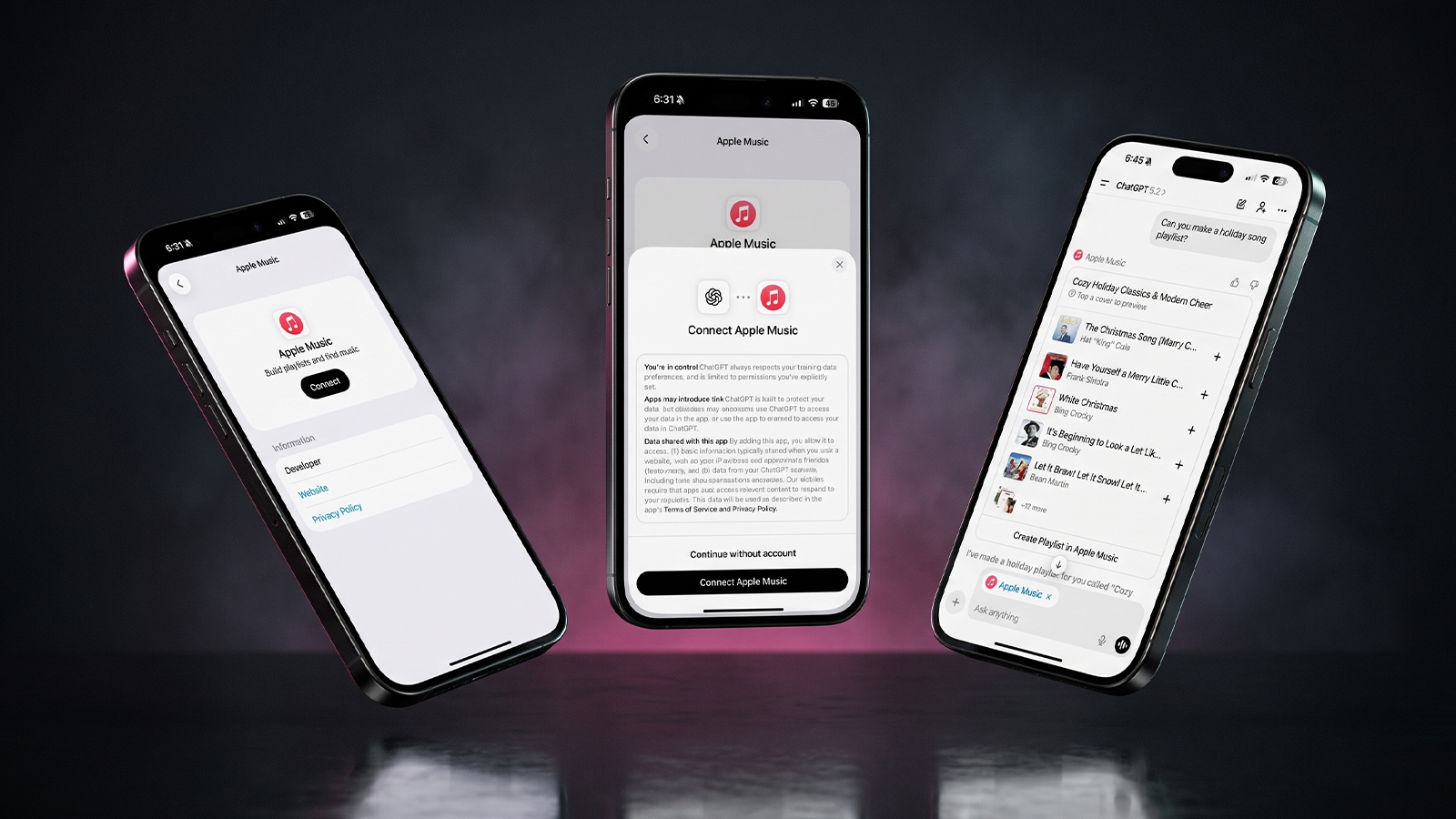
Three iPhones on a dark background with pink lighting showing the ChatGPT and Apple Music connection flow, including an "Apple Music" app page with a Connect button, a "Connect Apple Music" permissions dialog, and a ChatGPT chat generating a holiday song playlist.
Apple Music now works as a ChatGPT extension, so you can search tracks and build playlists using plain language. Here is how to set it up and use it.
Reward your inbox with the TPG Daily newsletter img

Subscribe to Our Newsletter

REWARD YOUR INBOX WITH THE MACREVIEW NEWSLETTER

Microsoft 365 wordmark surrounded by glossy app icons for Word, Excel, PowerPoint, Outlook, OneNote, Exchange, and Microsoft 365 on a soft light background.

Microsoft 365 experienced a significant service disruption affecting business and enterprise customers across North America. The outage impacted core productivity services including Outlook email, Microsoft Defender, and administrative portals, leaving users unable to access critical business tools for several hours. […]

Wireless printer with WiFi signal icon representing Apple AirPrint enterprise printing

When Apple introduced AirPrint in 2010, enterprise IT administrators largely dismissed it as a consumer-focused feature. More than a decade later, AirPrint has fundamentally transformed how organizations handle printing infrastructure, forcing the entire industry to abandon complex driver management in […]

Password Utility Solves the FileVault Reboot Problem for Remote Mac Management

Managing remote Macs presents unique challenges, particularly when FileVault encryption creates accessibility issues during restarts. A new utility from Twocanoes Software addresses this long-standing problem for IT administrators who need reliable access to devices deployed across distributed locations. The FileVault […]

Small smart display on an entryway wall by the front door, the spot many pick for an Apple HomeView wall mount
Apple sells HomeView as two $299 models, and only one of them goes on a wall with a Schneider Home Power Mount. Here is how the tabletop and wall versions differ and which one fits your home.
Man working on a laptop in a modern office at night with “Creator Studio” text and Apple logo above, plus floating creative app icons in the foreground.

Apple is reportedly planning to expand its subscription bundle offerings and introduce more paid features across its software ecosystem, following the launch of Apple Creator Studio last month. The company appears to be evaluating opportunities to monetize additional areas of […]

Three iPhones on a dark background with pink lighting showing the ChatGPT and Apple Music connection flow, including an "Apple Music" app page with a Connect button, a "Connect Apple Music" permissions dialog, and a ChatGPT chat generating a holiday song playlist.
Apple Music now works as a ChatGPT extension, so you can search tracks and build playlists using plain language. Here is how to set it up and use it.
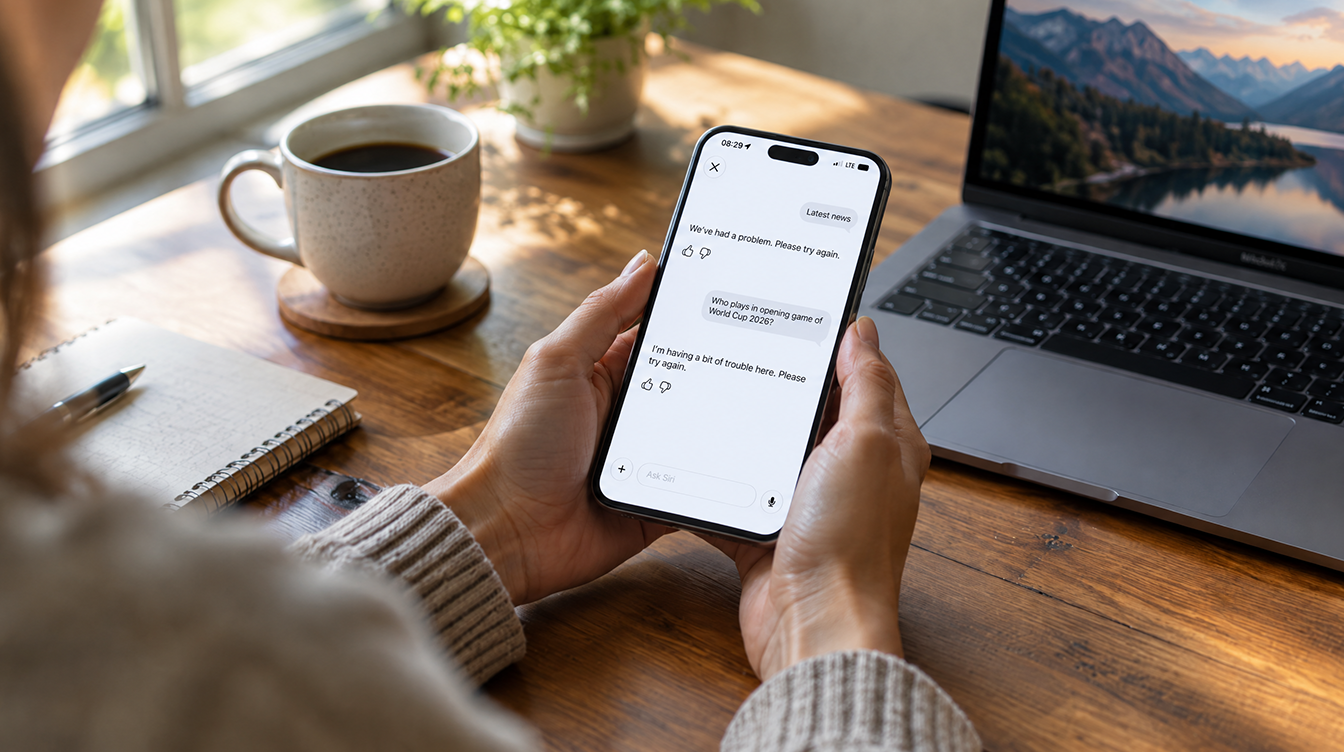
Hands hold a glowing smartphone at a sunlit kitchen table beside a laptop, a fix for Siri AI not working
Siri AI is a beta you have to request, so a missing assistant is usually a setup issue rather than a bug. Here are seven things to check, easiest first, and when to simply wait.
Apple Arcade games available across Apple devices

In 2025, you’ll notice significant changes in Apple Arcade’s fan favorites, as exclusive updates aim to refine and enhance your gaming experience. Titles like WHAT THE CAR? and Hello Kitty Island Adventure are set to receive major gameplay improvements, alongside […]

Resident Evil 2 on iPhone, iPad and Mac

With the anticipated release of Resident Evil 2 on iOS and macOS, set for December 10, 2024, fans of the franchise are on the edge of their seats. This iconic survival horror game promises a refreshed experience tailored for mobile […]

Hands near an open laptop and phone on a kitchen table, ready to switch from Chrome to Safari
Apple's new Switch to Safari campaign makes a strong case for leaving Chrome. Here is how to move your bookmarks, history and passwords on Mac, iPhone and iPad, and what does not come along.
Phone playing an audiobook beside earbuds and a paperback on a park bench, tracking Spotify audiobooks listening hours
Spotify is bringing audiobooks to more than 180 markets, with 12 hours a month included in eligible Premium plans. Here is how that time is counted, how to check what is left and how to buy more.
Sign Up For Newsletter mobile

Catch The Latest

Sign Up For Newsletter

Updated October 2026 for iOS 27, iPadOS 27 and macOS. Quick answer: There are 8

Apple Music now works as a ChatGPT extension, so you can search tracks and build
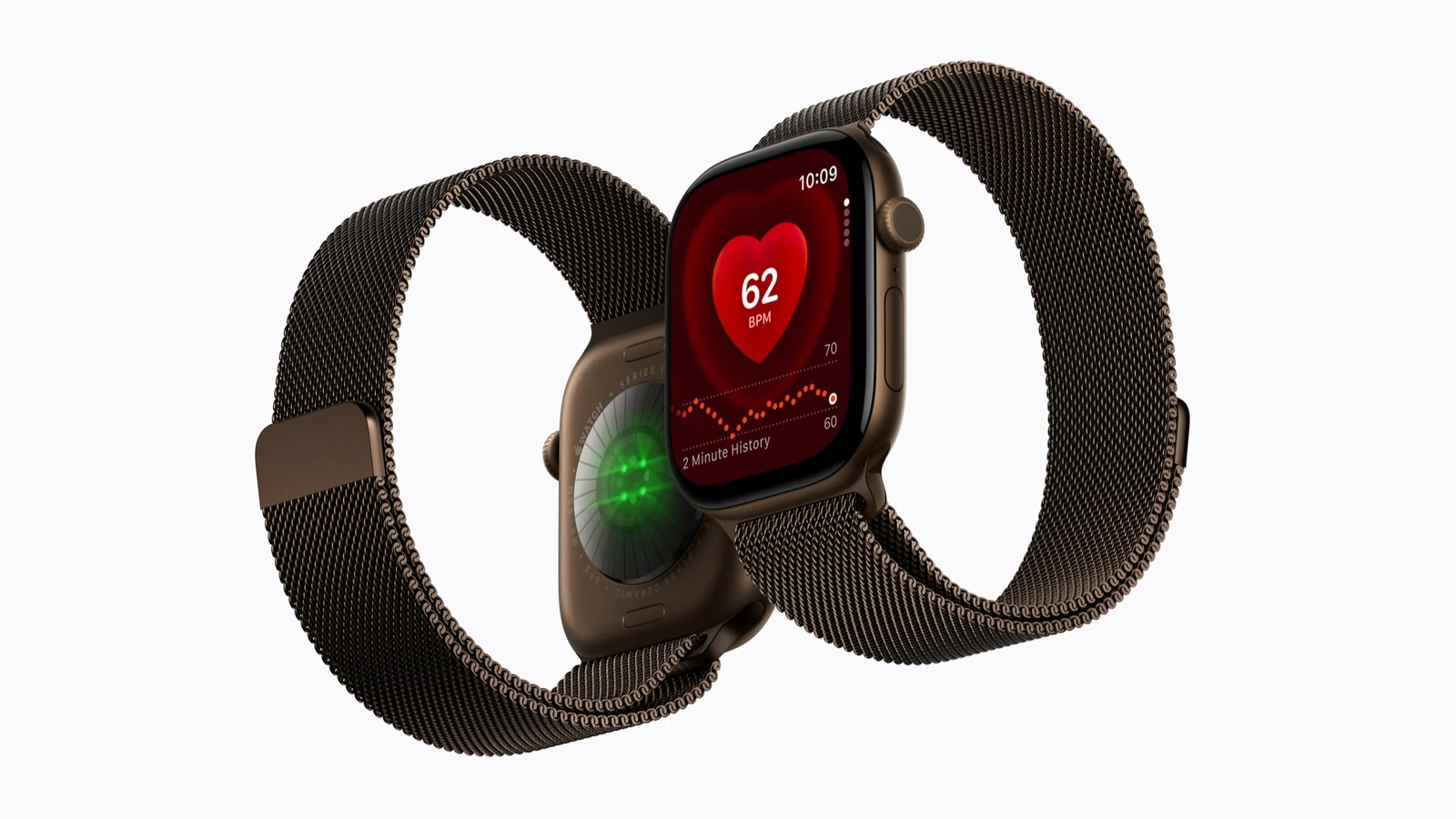
A new Health Sensing System, heart rate every five seconds, a 0-to-10 readiness score, and
Six laser-cut blades, four aperture stops, and a 2nm chip. Here is every confirmed iPhone
Scroll to Top